Top tips for staying secure online
Top tips to ensure you are doing all you can to secure you and your family online
Page 6 of 7
Backing up your data

How to make sure you can recover your important photos, documents, and other personal data stored on your IT equipment.
Most of us at some point have been unable to access important data, whether it's work documents, photos, videos, contact details or other personal information.
This page explains why you should make backups, and the types of backup techniques available. It also contains links to detailed backup instructions from Microsoft, Apple and Google.
Making backups doesn't take very long, and can usually be set up to take place automatically. So a little planning in advance to make backups could save you a lot of stress should the worst happen.
What is a backup?
A backup is a copy of your important data that's stored in a separate safe location, usually on the internet (known as cloud storage), or on removable media (such as USB stick, SD card, or external hard drive).
Once you've made a backup, if you lose access to your original data, you can restore a copy of it from the backup.
Most backup solutions allow you to choose what data is backed up, whether that's just documents and photos and videos, or the entire contents of your phone/computer (including the apps and programs you use).
As a rule of thumb, you should back up anything that you value. That is, anything that would inconvenience you - for whatever reason - if you could no longer access it.
Why might I need a backup?
There are many reasons why you might be unable to access your data.
- you have a new device, and you want to copy existing files onto it
- your device is lost or stolen
- your device breaks
- the data on your device is accidentally deleted (or becomes unreadable)
- a virus (or other type of malware such as ransomware) may erase your data, or prevent you from accessing it
- your hard drive needs to be erased or replaced
Backing up using cloud storage
If you use cloud storage, a backup of your data is stored on the internet. If you use products from Apple, Google or Microsoft (such as Windows computers, Apple and Android phones and tablets), you'll probably have an amount of cloud storage space for free. This might be sufficient to save all your important files.
At the time of writing:
Apple iCloud provides 5GB of free space
Google Drive provides 15GB of free space
Microsoft OneDrive provides 5GB free space
There are upgrade options that provide more space and other features (such as sharing space with other family members).
Using cloud storage also means you'll have the option to automatically create backups, which means:
- you’re more likely to have a recent copy of your data
- you don't have to remember to make backups
Of course, using cloud storage requires a reliable internet connection to back up (and restore) the data, so cloud storage may not be suitable for you if:
- your internet connection is slow or unreliable
- you use a metered connection (which would make backing up expensive)
- you're creating particularly large backups (for instance, backups that contain a lot of video footage, or a backup of your entire computer)
If any of these apply, you should consider creating a backup using removable media.
Below we've provided links to the major providers' instructions for backing up files using their cloud storage solutions. Most providers support regular automatic backup to a connected cloud storage account, and can back up your data daily/weekly (or when new files are added to specific folders). You'll find details of how to do this in the instructions.
If you use a different cloud provider not listed here, refer to their website for instructions on how to back up data.
Protecting your backups
Anyone who is able to access your cloud account will also have access to your backups. Make sure you protect your account by using strong passwords to control access to your account, and by turning on 2-Step Verification (2SV), which is also known as two-factor authentication.
-

Apple iCloud
-
Microsoft OneDrive
-
Google Drive
Backing up using removable media
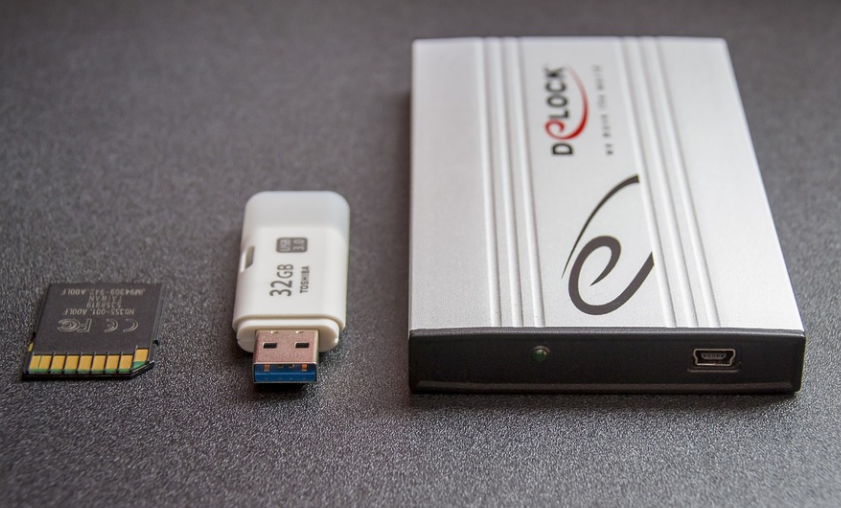
You can also back up your data to removable media, such as:
- an external hard drive (usually connected by a USB cable)
- a USB stick or thumb drive
- an SD card
- DVD or CD-R discs
When the removable media isn't in use, it's important that you disconnect it. Viruses (and other types of malware, such as ransomware) can move to attached media automatically, which means any such backup could also be infected, leaving you with no backup to recover from.
Note that:
- Backing up using removable media allows you to backup large amounts of data, which may be beyond the capacity of cloud storage options.
- If you are backing up to removable media, it is a good idea to set a calendar appointment or reminder to do this at regular intervals. Some backup programs allow you to schedule automatic backups.
- If you're given the option to protect your backup with a password, you should do this, in case the removable media is lost or stolen. Without the password, someone who has the media can not access the data in your backup.
Backing up your desktop environments (PC and macOS) using removable media
Some systems have features to help you back up your data to removable media:
- Windows: Back up and restore your PC
- macOS: Back up your files with Time Machine
Backing up your phone or tablet to another computer
Once you've backed up your phone or tablet to another computer, you can then make a backup from the computer to removable media.
- Android: Transfer files between your Windows/Mac/Chromebook & Android device
- iPhone, iPad or iPod touch: Back up to Windows PC using iTunes
- iPhone, iPad or iPod touch: Back up to macOS
Restoring backups
Once you've made your backup, it's important to check that they contain all your important data. For example, you might want to check that your cloud storage contains photos you have taken recently, or any new files or folders you have recently created.
- Android: Restore data on your Android device
- Apple: Restore your iPhone, iPad or iPod touch from a backup
- Windows: Backup and Restore in Windows
If you have data that is 'irreplaceable' (such as photos and videos of family members), then consider keeping a copy in the cloud and also on removable media, so you can always access it.
Recovering files deleted by mistake
To recover files that may have been deleted accidentally, look for the 'recycle bin' and 'file history' features and make sure they are turned on. This is quicker than restoring an entire backup if you only need to recover (for example) a few photos.
- a recycle bin gives you some time to recover deleted files in case a file or folder is accidentally deleted
- file history (or 'snapshots') gives you an option to restore a file to a previous version, in case you need to undo a change