Configuring Microsoft Outlook 365's 'Report Phishing' add-in
How to report emails to the NCSC's Suspicious Email Reporting Service (SERS) using the 'Report Phishing' add-in for Microsoft Outlook 365.

About the guidance
This guidance describes how to configure the Microsoft Outlook 365's 'Report Phishing' add-in for Outlook, so that users can report suspicious emails to the NCSC's Suspicious Email Reporting Service (SERS).
This guidance is aimed at system owners responsible for administering Microsoft Outlook 365 within organisations. Once configured, users can quickly report emails that they suspect to be phishing attempts, using a single mouse-click.
Note:
The Report Phishing add-in is only available to corporate or business versions of Microsoft Outlook 365. The add-in is not currently available to Microsoft 365 users with home or student licences.
Organisations who already have Microsoft Outlook 365 reporting set up should follow this new method to update it. The previous method will no longer deliver mail to the suspicious email reporting service.
Create a shared mailbox for your phishing emails
Create a shared mailbox as an intermediary mailbox for your phishing emails.
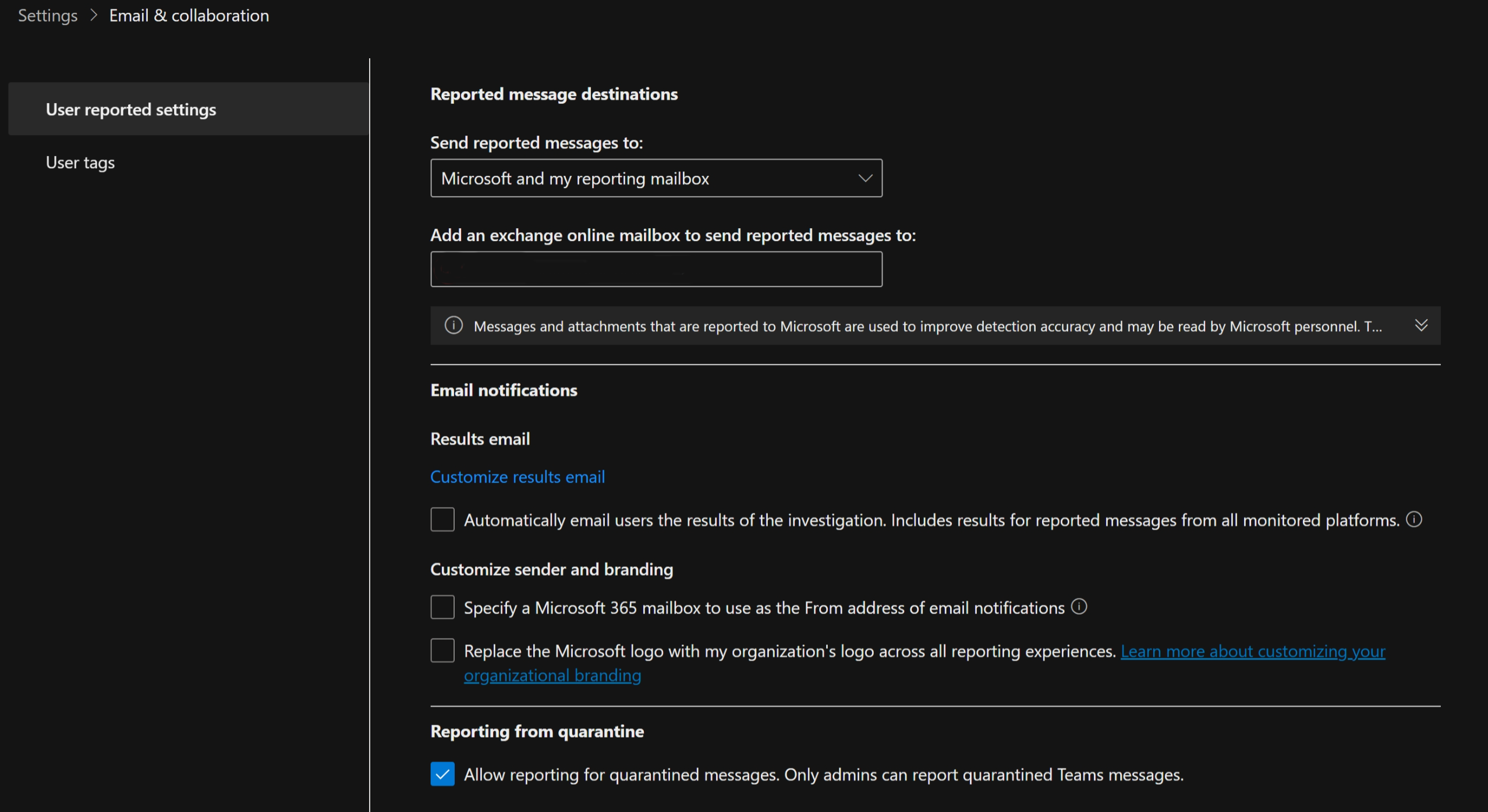
Edit the Microsoft Defender Emails & collaboration page in the Security Portal to match the settings given in the following images and description, and to specify the new shared mailbox in the "add an exchange online mailbox to send reported message to" field
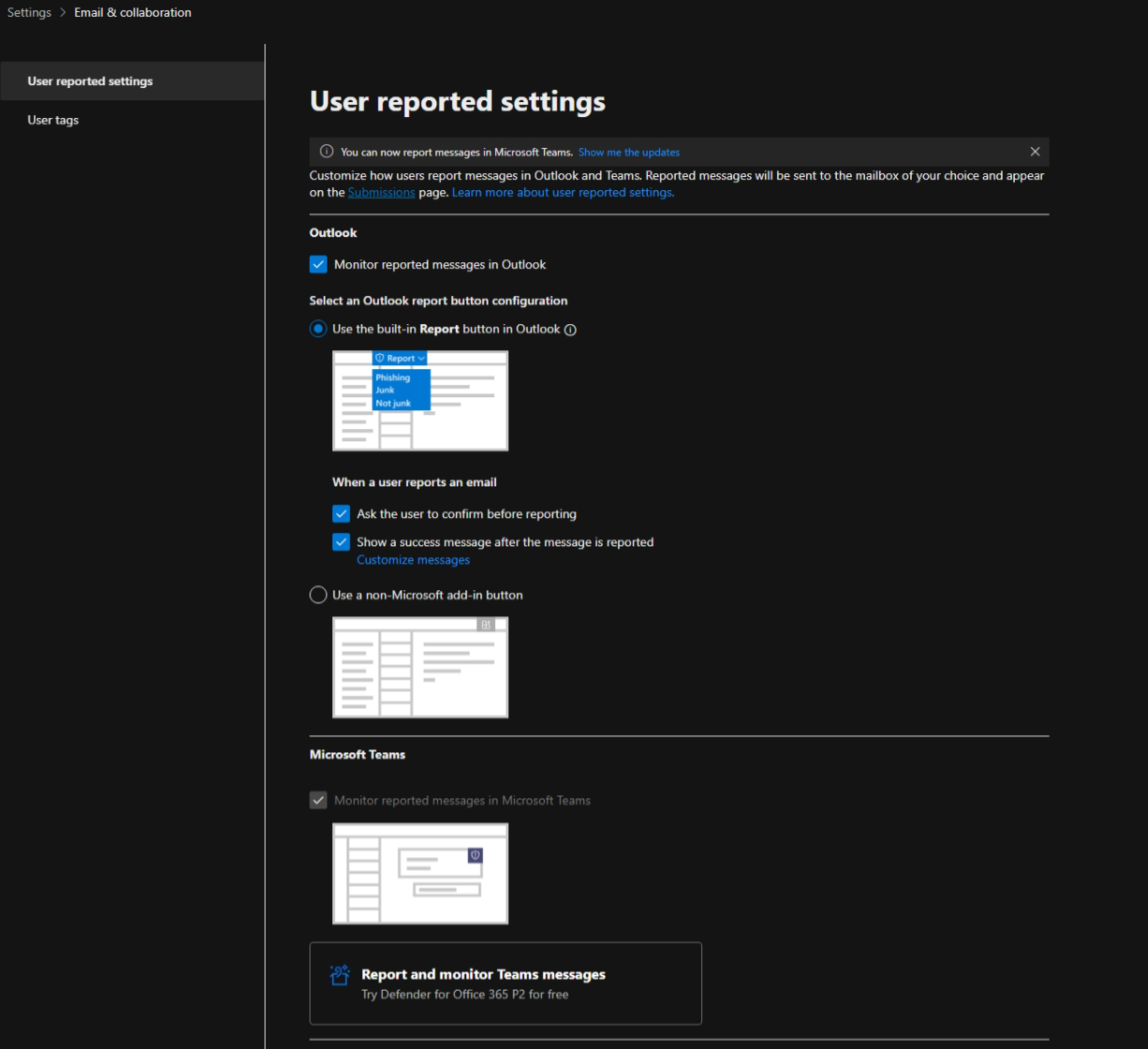
- From the Security Portal choose Settings
- Then the Email & collaboration option
- From there choose "User reported settings"
- In the Outlook section tick "Monitor reported messages in Outlook"
- Then in "Select an Outlook report button configuration" choose "Use the built-in Report button in Outlook"
- Then in "When a user reports an email" tick both "Ask the user to confirm before reporting" and "Show a success message after the message is reported.
- In the Microsoft Teams section "Monitor reported messages in Microsoft Teams should be ticked already, and greyed out.
- The drop down option under "Send reported messages to:" should show "Microsoft and my reporting mailbox"
- Specify your new shared mailbox in the "Add an exchange online mailbox to send reported message to" field
- In the Email notifications section nothing should be ticked
- In the Reporting from quarantine section "Allow reporting for quarantined messages. Only admins can report quarantined Teams messages." should be ticked
Installing the Microsoft Outlook 365 'Report Phishing' add-in
Your organisation must be willing to accept Microsoft's terms of use before installing the Report Phishing add-in.
- Go to the Microsoft AppSource and search for the Report Phishing add-in.
- Click the Get it now button.
- Follow the instructions to complete the installation.
Note:
It could take up to 12 hours for the add-in to appear in your organisation. Once it does, you can configure it to include the SERS service.
Including the NCSC's SERS in the Report Phishing add-in
- Log into the Microsoft 365 Admin Center.
- Navigate to the Exchange Admin Center.
- From here navigate to Mail Flow → Rules.
- Click the Create New Rule button.
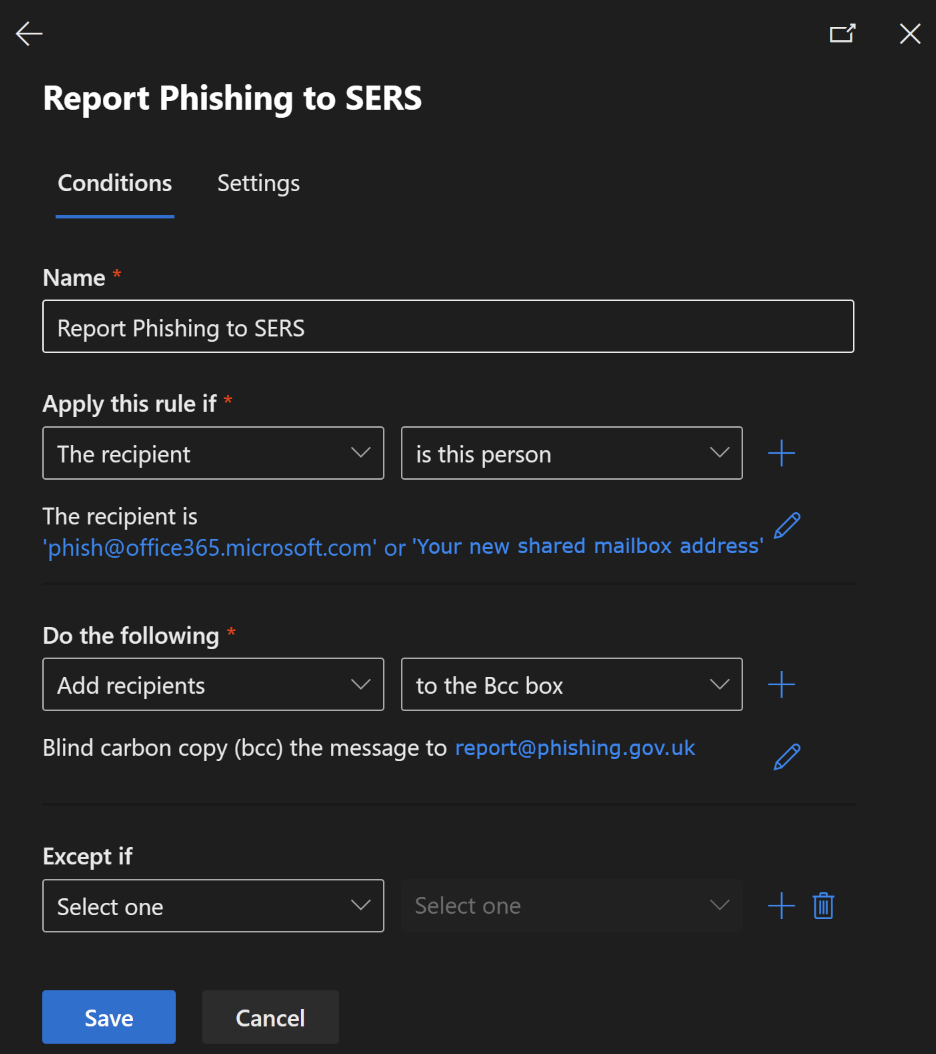
A ‘New Rule’ window is displayed. - Enter a name for your rule Report Phishing to SERS.
- Set Apply this rule if to The recipient is [email protected] or your newly created shared mailbox.
If you want to see what emails your users are reporting, you can also enter the email address of an email account you manage. Set Do the following to Bcc the message to [email protected]
The rule should look as follows.
- Click the Save button.
The rule is added. All emails flagged using the Report Phishing button will be routed to the NCSC's SERS.
About the SERS
The NCSC's Suspicious Email Reporting Service (SERS) enables the public to report suspicious emails by sending them to [email protected] The SERS analyses the emails and where found to contain links to malicious sites, seeks to remove those sites from the internet to prevent the harm from spreading.
- Information provided to SERS is protected in the same way we protect our own confidential information; it is held securely, with strictly limited access.
- We may share details with our law enforcement partners, such as the National Crime Agency and the City of London Police, to help identify investigation and mitigation opportunities.
- The information we hold is exempt from Freedom of Information requests.
- For further detail on how we handle information you send us, please see our Privacy Statement.
Sample documentation for internal staff
To help your staff use the Report Phishing add-in, we've produced some sample documentation that you may wish to modify and distribute.
sample documentation begins
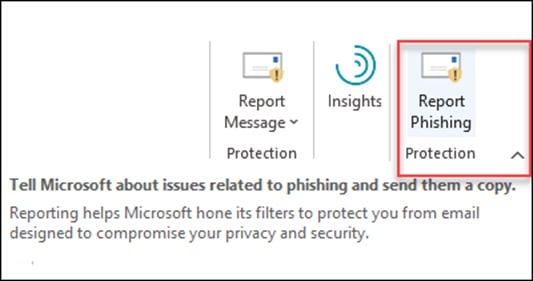
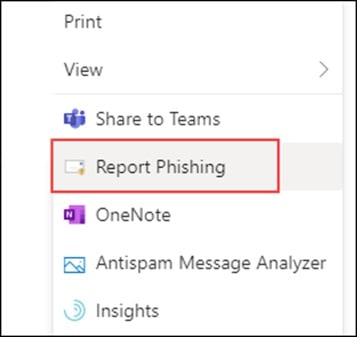
We've made changes to Outlook, so that you can easily report phishing emails in your inbox. If you receive any email that you suspect is suspicious, select the message and click the new Report Phishing button.
If you're using the full Outlook program, the button appears in the main toolbar:
If you're using Outlook via a web browser, the button appears in the sidebar:
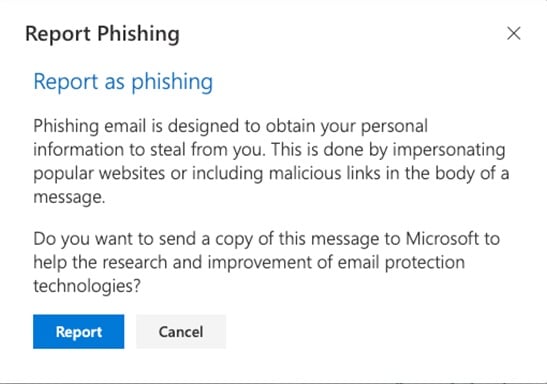
Once clicked, you'll be asked to confirm the submission:
By reporting suspicious emails, you will help to keep yourself, colleagues, and your organisation safe. Reported emails are submitted to Microsoft and to the National Cyber Security Centre (NCSC).
- Microsoft uses these submissions to improve the effectiveness of email protection technologies.
- The NCSC's Suspicious Email Reporting Service will analyse and take down any phishing attempts found within these emails.
Note:
If the Report Phishing button is not available, but you still wish to report a suspicious email to the Suspicious Email Reporting Service, you can do so by forwarding the email in question to [email protected]
If you have any questions about this documentation, in the first instance please refer to your IT helpdesk.