Macro Security for Microsoft Office
Why macros are a threat, and the approaches you can take to protect your systems.
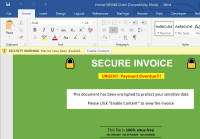
This guidance describes how administrators can help protect their systems from malicious Microsoft Office macros. It outlines why macros are a threat, and the approaches you can take to protect your devices.
What are macros, and why are they a problem?
A macro is a small program that is often written to automate repetitive tasks in Microsoft Office applications. Macros have been historically used for a variety of reasons - from an individual automating part of their job, to organisations building entire processes and data flows. Macros are written in Visual Basic for Applications (VBA) and are saved as part of the Office file.
Macros are often created for legitimate reasons, but they can also be written by attackers to gain access to or harm a system, or to bypass other security controls such as application allow list. Malicious macros can do almost anything that other malware can do to your system, including emulating ransomware, stealing data, and emailing itself out to your contacts.
Malicious macros are not new; the underlying attack has remained unchanged since the 1990s, and they still form the majority of attacks targeting Microsoft Office. However, obfuscation and dynamic content loading has made malicious documents more difficult for traditional antivirus to detect.
Macros are often part of phishing or spear phishing campaigns. In this, an attacker sends emails and attempts to convince the user to open the attached file and run the malicious macro. Techniques (such as these seen by Microsoft) successfully use social engineering to trick well-intentioned users into enabling malicious Office macros. The NCSC phishing guidance discusses how you can defend your organisation against phishing attacks.
Changes to Windows Defender and the default settings in some versions of Office apps have started to reduce the number of attacks relying on macros. However, they are still highly prevalent and so it is still necessary to act to further reduce the risk to your organisation.
Microsoft have introduced more flexible alternatives to macros that have been built with the threat model of a connected world in mind. These are a mix of more powerful functions built into newer versions of Office apps and cloud-native services in Microsoft 365. Macros can and should be treated as legacy feature.
Protecting your systems from malicious macros
The only effective way to protect your systems against malicious macros is to disable macros in all Office apps and ensure that users cannot re-enable them.
Many organisations still rely on Office macros for day-to-day business functions, including where they’re used to interact with external partners. Organisations that are still using macros should develop a strategy for replacing them - we've included a few suggestions below for how you might do this.
If you can’t yet turn macros off, you will need to find the combination of mitigations listed below that are least disruptive for you, as different organisations use macros in different ways. That said, for all installations of Microsoft Office you should:
- disable Office macros except in the specific apps where they are required
- only enable macros for staff that rely on them every day
- use an anti-malware product that integrates with the Anti Malware Scan Interface (AMSI) if you use Windows
Your organisation will always be best protected when you automatically apply the latest security updates to the Office Apps and the underlying operating system, i.e. Windows or macOS. We talk about some strategies that can help you do this in our guidance about keeping devices and software update.
We also recommend that you use the latest versions of those applications (ideally the Current Channel or Monthly Enterprise Channel) and the underlying operating system. This will allow you to take advantage of the latest mitigations and vendor-recommended defaults that have been designed in response to the latest threats.
1. Disable macros where they're not used
If your organisation does not use macros, they should be turned off entirely.
If you cannot yet turn macros off, you should work on replacing the macros that your business relies on, so that you can turn them off entirely in the future.
Larger organisations should consider only enabling macros for the specific groups or teams that need them. This allows training to be better-focused and appropriately targeted for these smaller sets of users, to help them understand social engineering techniques and agree sensible protective measures.
You should note that:
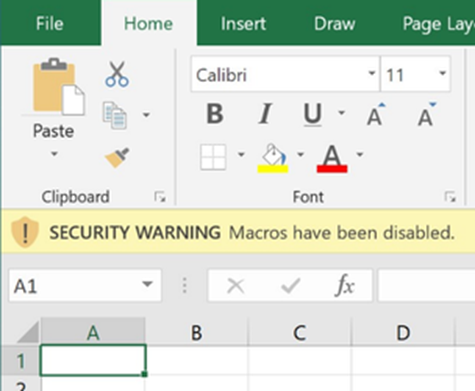
- currently supported versions of Microsoft Office on macOS and Windows have the macro engine enabled by default; though some newer versions of the product attempt to block macros that have come from the Internet as described below. You should not rely on prompts that offer the user to click a button before any macros can run - it is relatively simple to trick the user into clicking this button, so you cannot rely on it as a mitigation.
- Macros on Windows are configured per-application. If you use macros in some Office applications and not others, you should disable them in the applications where they are not used. For example, if your organisation only uses macros in Excel, you can disable them in Word, PowerPoint, Visio, Access and Publisher. Note that OneNote does not support macros.
- Macros on macOS are configured for the entire Office suite so you should aim to entirely disable them.
Excel also has an older macro engine on Windows that has been retained for backwards compatibility. Almost all organisations should be able to safely turn it off. We recommend using the "Prevent Excel from running XLM macros" setting in group policy so that users cannot be socially engineered into turning it back on.
2. Reduce your dependency on macros
If you currently use macros, start replacing them with the modern safe alternatives so that you can disable macros completely in the longer term.
Prioritise replacing macros that are incompatible with the attack surface reduction (ASR) rules listed below. Modern approaches to office automation that can replace macros include:
- automating data flows using modern no-code alternatives such as Power Automate and Office Scripts
- using the more powerful native functions added to recent versions of Excel such as XLOOKUP and LAMBDA to manipulate data
- connecting to data sources using the native Power Query engine in Excel
- building custom web apps that support your business processes, connecting to data in Office 365 using Microsoft Graph
3. Disable high-risk macro capabilities
Windows
Windows Defender attack surface reduction (ASR) rules on Windows can be configured to disable some of the abilities of malicious macros.
You do not need to set these if you have disabled all use of macros in your organisation. If you do allow some macros to run, you should aim to enable all of the suggested mitigations.
They be initially run in audit mode to allow you to confirm that the macros that your organisation uses will continue to work properly. ASR rules also affect the behaviour of other Office features (such as Add-ins), so will require testing prior to broad deployment in organisations that rely on third party Office plugins.
We recommend enabling a range of ASR rules in our Windows guidance. The ones that best target the threat from malicious macros are:
- Block all Office applications from creating child processes
- Block execution of potentially obfuscated scripts
- Block JavaScript or VBScript from launching downloaded executable content
- Block Office applications from creating executable content
- Block Office communication application from creating child processes
- Block Win32 API calls from Office macros
- Use advanced protection against ransomware
macOS
Office on macOS uses the platform’s sandbox to limit the damage caused by a malicious document. We recommend deploying preferences to strengthen the default configuration of the Office sandbox to further reduce the impact of running malicious macros.
The macro security preferences that best target the threat from malicious macros on macOS are:
- Disable the VBA object model
- Disable Visual Basic system bindings
- Enable disabling Visual Basic external library bindings
- Enable disabling Visual Basic pipe bindings
- Enable disabling Visual Basic invoking AppleScript
4. Use an anti-malware product to detect malicious behaviour in macros
You can reduce the chance of a malicious macro reaching a user if you use an anti-malware product that includes behavioural analysis for macro-enabled Office documents. It could be a part of your email service, or a feature of the anti-malware software on the user’s device.
Organisations using an antivirus that uses Microsoft’s AMSI interface (as recommended in the NCSC's device security guidance for Windows) will have the ability to detect malicious macros even if the malicious intent is cleverly disguised. You should configure the feature to scan all documents, as the default is to only scan those that Office has identified as having come from the Internet.

A dialog box alerting the user that a malicious macro has been detected by your virus scanner
We recommend that devices connected to the Internet are configured in line with the NCSC’s device security guidance. These configurations include a range of mitigations that help protect against malware. While an application allow list is unlikely to prevent malicious macros themselves from running, a configuration such as the one suggested in the guidance for Windows and macOS is a particularly effective way of blocking malware and ransomware that is downloaded by (or extracted from) an Office macro.
5. Disable macros unless they are in trusted files
Office on Windows can also be configured to only allow macros if the file is loaded from a trusted location, such as a specific folder, file share or website. Your organisation will need to define that list of trusted locations. We recommend that macros are only permitted to run from a trusted location, such as a network share that only trusted administrators have written access to.
The antivirus integration described above does not apply to macros in trusted files by default, as many organisations rely on macros that exhibit similar behaviours to malware. We recommend that you override this default as described above so that all trusted files are scanned for malicious behaviour.
Organisations that have a code signing service can choose to configure Office on Windows to only allow digitally signed macros to run. However, the setting allows users to choose to run any macro that has a valid signature - there is no option to only allow macros that have been signed by a specific list of trusted publishers.
6. Block macros from the internet
Office 2016 on Windows introduced the ability for an organisation to block macros in files received from the internet except those that have a digital signature from a publisher that the organisation has chosen to trust. This makes it more difficult to socially engineer users into bypassing the warning.
Since January 2023, this setting has been enabled by default in the Microsoft 365 versions of Office Apps. You should confirm whether you have deployed version 2206 or newer. Note that the perpetual versions of Office such as Office LTSC 2021 or Office 2019 do not have the setting enabled by default.
Macros are blocked from the Internet by default on Windows in S mode.

Image shows macros are blocked from the Internet by default on Windows in S mode.
Note that it is usually not practical to block the file types that can contain macros at your email or internet gateway as they can be found in commonly used legacy formats (such as .RTF .DOC and .DOT), as well as the newer formats that explicitly mark themselves as containing a macro (such as .DOCM and .DOTM).
Configuration options
Comparison of Microsoft Office versions
Some of the security-enabling features described above are only available in newer versions of Microsoft Office. Some features may also rely on Office being installed on a recent version of Windows 10 or macOS.
- we recommend that you use the most recent version of Microsoft Office, and that security updates are applied automatically
- we recommend that you use the most recent version of macOS or Windows, and that security updates are applied automatically
- where possible, we recommend using the Current Channel or Monthly Enterprise Channel monthly channel of Microsoft 365 Apps in preference to Office LTSC 2021 or earlier
- do not use versions of Microsoft Office that are no longer supported, including Office 2013 and Office 2010
| Versions | Office 365 on Windows | Office 365 on macOS | Office 2021, 2019, 2016, 2013 Office 365 on earlier versions of Windows |
|---|---|---|---|
| Default Macro Behaviour | Block until the user clicks the Enable Macros button.
Macros from untrusted locations will be scanned by compatible AV.
Macros with “mark of the web” are blocked on version 2206 or newer, or when using Windows in S Mode | Block until the user clicks the Enable Macros button. | Block until the user clicks the Enable Macros button. |
| Disable macros | Per application | For all application | Per application |
| Disable high-risk capabilities | Yes | Yes | No |
| Macro execution scanned by AV | Yes | No | No |
| Block from the internet | Yes | No | Yes |
| Trusted files (signature or location) | Yes | No | Yes |
Macros on Office for macOS offer similar functionality to Office running on Windows. They use a slightly different language but have equally dangerous capabilities that can be used by an attacker targeting Mac users.
Macros are not supported by Office Mobile apps on Android and iOS, nor the Office Online browser-based document editors.
Macros in Google Workspace do not have the risks described above with Microsoft Office macros. Users of Workspace that have also installed Microsoft’s Office apps on their Windows or macOS device will need to disable macro capabilities in those installed apps. This is necessary to protect against malicious macro-enabled files that may be sent to them by others.